MokupBeta

Sketch it.
AI builds it.
You present it.

Mokup is the sketchy mockup tool for fast ideas: draw wireframes, let AI turn a prompt or a photo of your sketch into editable screens, link the pages and click through them live.

See the change logDocumentation

Use cases

Real use cases, from the first rough idea to the meeting with your team: the moments where a quick sketch beats a polished design.

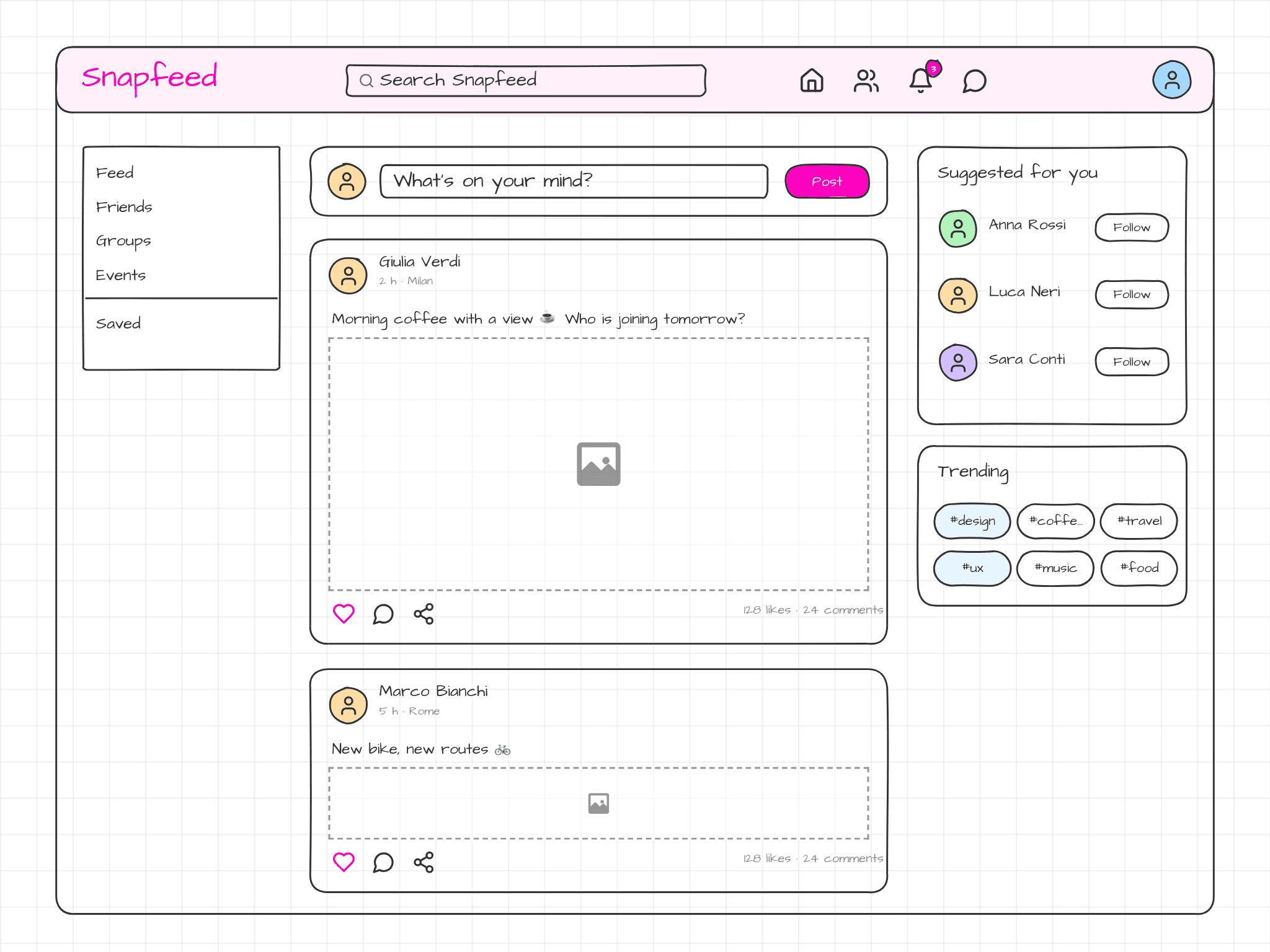
Websites
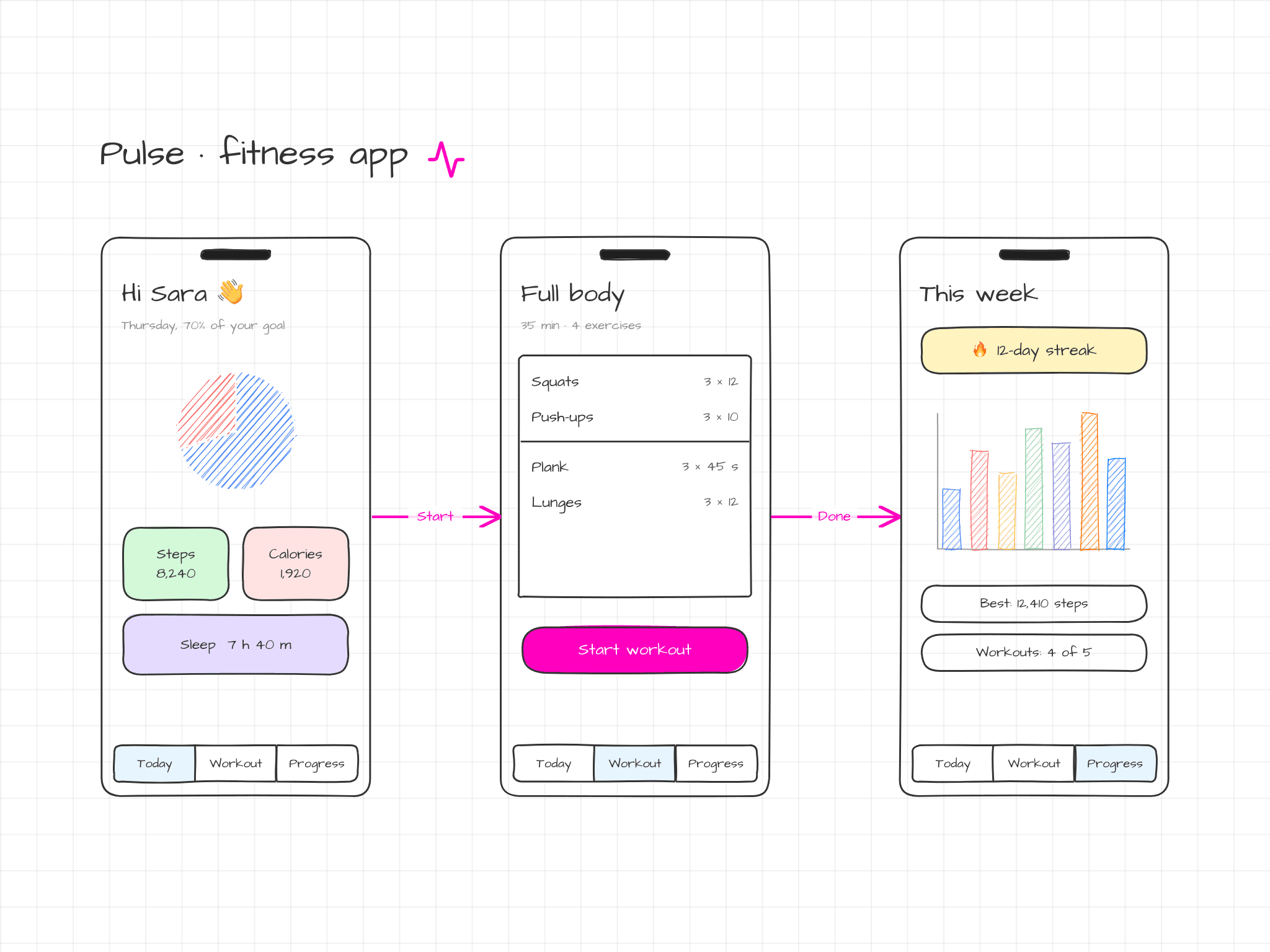
WebsitesMobile & Desktop Apps

Mokup in action

Turn ideas into wireframes in a few clicks: draw them from scratch, or describe them to the AI chat and let it build them for you.

editor demo - mokup

AI Assistant

Generate complete layouts from a prompt or from images, then refine them however you like: let the AI fix and iterate on its own, or jump into the editor and tweak every detail by hand.

Describe it, watch it build

Chat with the AI about what you need and it assembles the mockup for you, live.

From sketch to mockup

Feed in a rough wireframe or hand-drawn sketch and get back a polished, editable design.

AI Settings

Add your own API keys and choose the model that builds your mockups.

From Prompt to Page

Ask AI for a Facebook page profile, then refine it with follow-ups like "add the mobile version".

Convert an Image into a Mockup

Turn a hand-drawn sketch, a diagram or a screenshot into a fully editable mockup.

See how it works

Some of the features you'll find in Mokup. Open a card to watch the full tutorial.

Tools

Draw, sketch, pick an icon or a template, or just ask the AI.

Draw Components

There are three ways to add a component to the canvas.

Pen

Sketch freehand on top of your mockup to highlight, annotate or draw anything.

40.000 icons

Search thousands of icons, drop them on the canvas or use them inside inputs and buttons.

Templates

Drop ready-made blocks like logins, chats, music players and calendars into your mockup.

AI Chat

Ask AI for a Facebook page profile, then refine it with follow-ups like "add the mobile version".

Presentations

Present your mockup, click through the pages and draw on them live.

Add Components

Drop, place or draw them, keep the tool locked, build a whole layout.

Drag & Drop

Drag a component from the panel and drop it on the canvas.

Click to Place

Click a component: its preview follows the mouse over the canvas. Click again to place it.

Click & Drag to Draw

Click a component, then press and drag on the canvas to draw it at the size you want.

Keyboard Shortcuts

Press a letter to pick a component, even while drawing: R Container, O Ellipse, T Text…

Lock

Lock a component to place it again and again without picking it each time.

Build a Layout

Put together a full layout in seconds, then fine-tune size and rotation.

Edit Components

Style, copy, select, align, stack, group and erase what you draw.

Edit Components

Edit text inline and tweak borders, backgrounds and variants from the Properties panel.

Duplicate Elements

Copy any element in a second: drag a copy out, or duplicate it from the menu or the Properties panel.

Select and Edit Multiple Elements

Shift + click to select several elements and style them all at once.

Align and Distribute

Line up several elements on an edge or a center, and space them evenly.

Layers and Stacking Order

Control which element sits on top: from the context menu, the toolbar or the Layers panel.

Groups

Group elements, style the whole group, then step inside to edit a single child.

Erase

Tap an element to erase it, or drag across the canvas to erase everything the trail touches.

Editor

Draw, arrange and link your screens.

Smart Connectors

Link elements with straight, curved or orthogonal connectors that follow them around.

Custom Templates

Save your own components as templates and reuse them in every project.

Pages

Link a button to another page, add pages and click through the flow in Presenter mode.

Zoom and Pan

Move around big mockups with your trackpad, mouse and keyboard.

Zoom Panel

Zoom and jump around the page from the mini-map in the corner.

Annotations

Leave notes on your mockup for yourself or your team.

Export

Export a single page or the whole project as an image or a PDF.

Save to the Cloud

Save your project online: it stays in sync and opens from any device.

Save as a .mokup File

Keep a copy on your device as a .mokup file and open it again whenever you want.

Global Settings

Make the editor yours: light or dark theme, sketchy or modern style, grid, snap, previews and shortcuts.

More...

Present your ideas and keep your work organized.

Manage Projects

A dashboard for all your projects: create, rename, duplicate and share them.

Inline Tips

Many features have a help icon: click it to see how they work with a short animation.

Fully Customizable

Arrange it your way: panel position and direction, sketchy or modern style, sheet background, glass panels, tooltips and more.

Desktop and Mobile

Mokup runs great on desktop browsers today, and we're actively working on full iPad compatibility so you can sketch ideas anywhere.

  • Support for Chrome and Safari
  • Responsive layout adapts to any screen size
  • iPad compatibility in progress (but you can already try it)
  • No install required — works directly in the browser

Old UI in this video 🙈fresh one on the way

Ready to sketch your next idea?

Mokup is in Private Beta